

How to Install Android 12 on a Compatible Smartphone Without a Computer or Root
Android 12 introduced a major visual redesign and brought several changes to the Android user experience, including the Material You design system, redesigned widgets, updated notifications, new animations, privacy improvements and refreshed system controls.
If you have an older Android phone that supports Google's Project Treble and Dynamic System Updates, you may be able to test a compatible Android 12 Generic System Image (GSI) without replacing the phone's normal operating system.
The important word here is compatible. Despite the title of many older tutorials, DSU cannot install Android 12 on literally every Android smartphone.
Table of Contents
- What Is Android 12?
- What Is Dynamic System Update?
- Requirements
- How to Check Device Compatibility
- Enable Developer Options
- How to Install Android 12 Using DSU
- How to Boot Into the DSU System
- How to Return to Your Normal Android System
- Limitations of Android 12 GSI
- What to Do if DSU Installation Fails
- Frequently Asked Questions
- Video Tutorial
- Final Thoughts
What Is Android 12?
Android 12 is a major version of Google's Android operating system. It introduced one of the most significant visual changes to Android in years.
Among the features associated with Android 12 are:
- Material You design and personalization.
- Redesigned widgets.
- Updated notification interface.
- New system animations.
- Updated Quick Settings and system controls.
- Enhanced privacy controls.
- Privacy dashboard improvements.
- Updated user interface elements.
Android 12 was officially released years ago, so it should no longer be described as a beta release. The purpose of using a compatible Android 12 GSI today would generally be experimentation, development, testing or compatibility research rather than getting the latest Android features.
What Is Dynamic System Update (DSU)?
Dynamic System Updates (DSU) is an Android feature that allows a compatible device to temporarily boot a different system image without permanently replacing the normal operating system.
In simple terms, DSU can create a temporary environment where a compatible Generic System Image can be tested while the phone's normal Android installation remains available.
This makes DSU particularly interesting for developers and advanced Android users who want to test another Android system without immediately flashing the phone's permanent firmware.
Requirements Before Installing Android 12
Before attempting the installation, check whether your device meets the necessary requirements.
| Requirement | Why It Matters | Status |
|---|---|---|
| Android device with DSU support | The device must support Dynamic System Updates. | 🟢 Required |
| Project Treble support | GSI-based Android systems rely on Treble-compatible architecture. | 🟢 Required |
| Compatible partition configuration | Dynamic partitions and the device's implementation affect compatibility. | 🟢 Required |
| Supported GSI | The Android 12 image must match the device's supported architecture and requirements. | 🟢 Required |
| Enough storage | The GSI and temporary system data require substantial free storage. | 🟢 Required |
| Unlocked bootloader | Requirements vary by device and DSU implementation. | 🟡 Device dependent |
| Computer | The DSU process may be available directly from Android on supported devices. | 🟢 Not necessarily required |
| Root access | DSU is designed to work without requiring normal root access. | 🟢 Not normally required |
How to Check Whether Your Phone Supports Treble and DSU
One of the most important steps is checking your phone before attempting the installation.
Option 1: Check Developer Options
On supported devices, Android may provide a DSU Loader option inside Developer Options.
If the DSU Loader option is available, it is a strong indication that the device exposes DSU functionality. However, the availability of a DSU menu does not automatically guarantee that every Android 12 GSI will work correctly.
Option 2: Use a Treble Information Tool
Older guides commonly recommend applications such as Treble Info or similar utilities to inspect Project Treble compatibility, architecture and partition information.
If you use such an application, verify the information carefully and make sure the application comes from a trustworthy source.
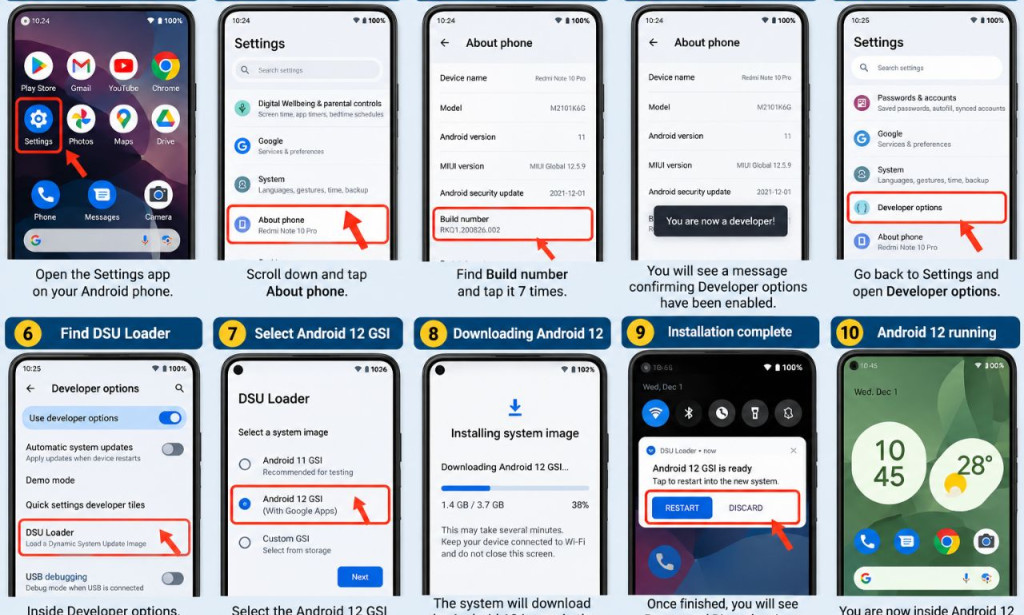
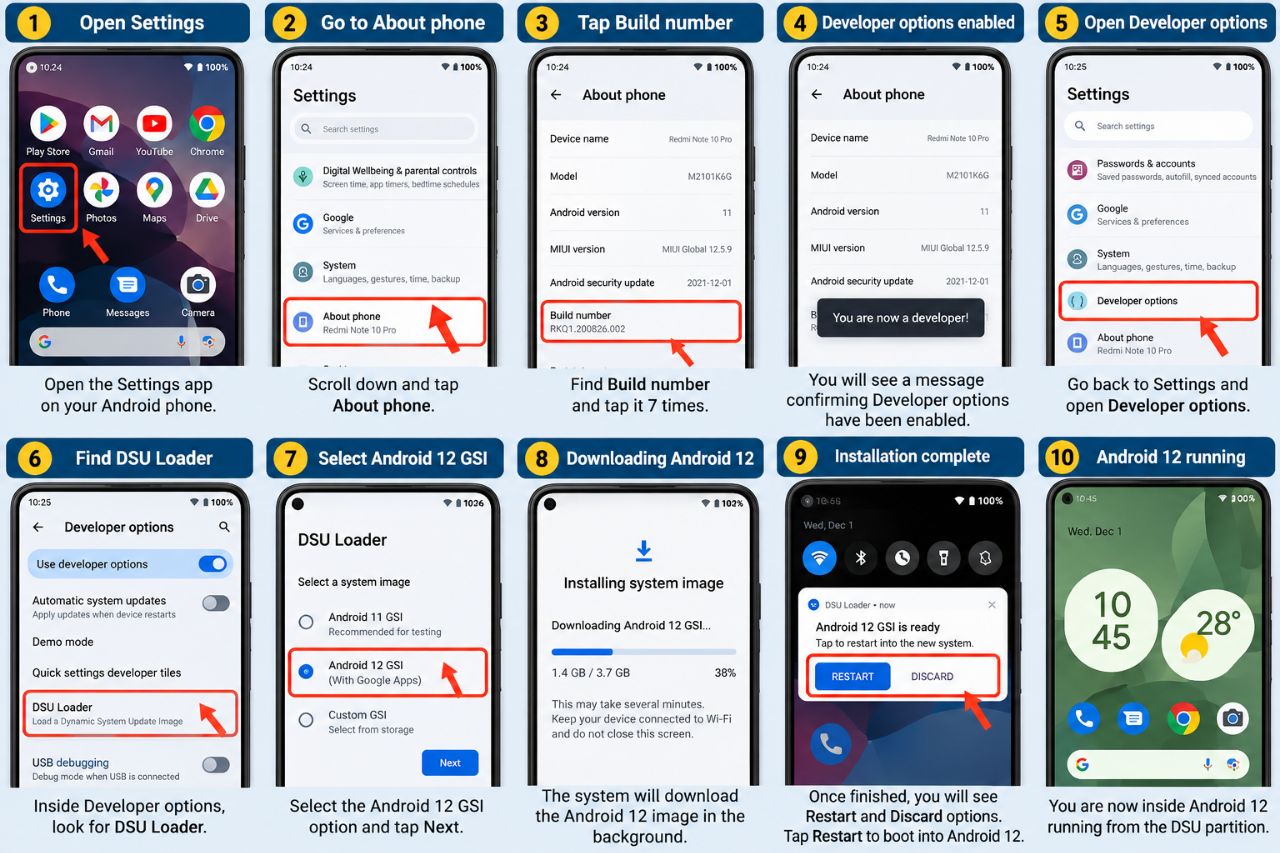
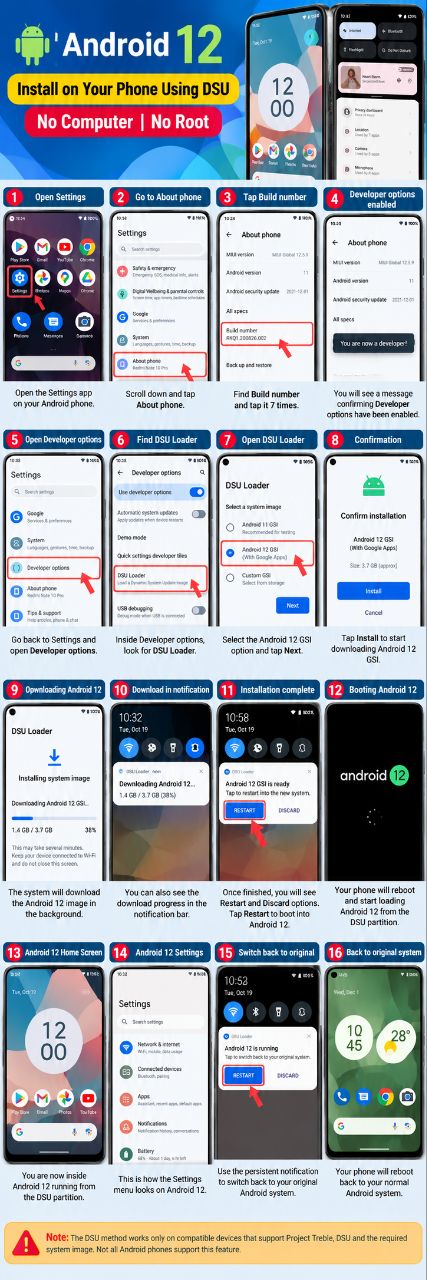
Step 1: Enable Developer Options
If Developer Options are not already enabled, you can usually enable them through the Android settings menu.
Step 2: Find the DSU Loader
On Android devices that expose the feature, open Developer Options and look for DSU Loader.
The exact location and wording may differ depending on the manufacturer and Android version.
Step 3: Select a Compatible System Image
If DSU Loader is available, it may present compatible system images or options for installing a GSI.
The exact list depends on the device. If Android 12 is not offered as a compatible option, you should not force an unrelated image simply because it is labeled "Android 12."
Step 4: Start the DSU Installation
After selecting a compatible image through the supported DSU interface, Android will begin preparing the temporary system environment.
The download size can vary depending on the image. Older tutorials sometimes quote a specific file size, but this should not be treated as a fixed requirement because GSI packages and delivery methods can change.
Step 5: Boot Into the Android 12 DSU System
When the DSU installation is successfully prepared, Android may display an option to restart or boot into the newly installed system.
How to Return to Your Normal Android System
One of the useful aspects of DSU is that the original Android environment can remain available.
Depending on your device and Android implementation, you may see a persistent notification or system option that allows you to switch back to the original system.
Important Limitations of Android 12 GSI
Successfully booting Android 12 does not necessarily mean that every hardware feature will work perfectly.
| Component | Possible Result |
|---|---|
| Touchscreen | May work normally if the vendor interface is compatible. |
| Camera | May have compatibility problems depending on the device. |
| Audio | May not work correctly on some GSI configurations. |
| Fingerprint sensor | Functionality can vary. |
| Mobile network | Can depend on modem and vendor compatibility. |
| Bluetooth | May work normally or experience compatibility issues. |
| Battery optimization | May not be as optimized as the manufacturer's official firmware. |
| Performance | Can vary significantly between devices. |
This is why a GSI should generally be considered a testing or experimental environment, rather than a replacement for the manufacturer's official firmware.
What to Do If DSU Installation Fails
If Android reports that the DSU installation failed, do not repeatedly attempt random images.
Check the Following:
- Does the phone actually support DSU?
- Does it support Project Treble?
- Are dynamic partitions supported?
- Is the selected GSI compatible with the device architecture?
- Is there enough free storage?
- Is the bootloader requirement satisfied?
- Is the current Android firmware compatible with the DSU implementation?
- Is the downloaded image complete and from a trustworthy source?
DSU vs. Traditional Android Installation
| Feature | DSU / GSI | Traditional Firmware Flashing |
|---|---|---|
| Computer required | Often not required when DSU is exposed on the device. | Usually required. |
| Root required | Normally no. | Normally no, although procedures vary. |
| Permanent system replacement | Designed as a temporary/test environment. | Usually changes the installed firmware. |
| Compatibility | Requires suitable Treble/GSI support. | Requires exact firmware compatibility. |
| Risk | Generally lower than directly flashing system partitions, but still not risk-free. | Potentially higher. |
Can You Install Android 12 on Any Android Phone?
No. This is one of the most important corrections to the original article.
DSU makes Android GSI testing easier on compatible devices, but it does not make every Android phone compatible with every version of Android.
Your device must have the appropriate software architecture and DSU/GSI support. Even then, the GSI may have hardware compatibility problems.
Frequently Asked Questions
Watch the Video Tutorial
You can also watch the original video tutorial associated with this article below:
Also Read
- How To Install Android 13 On Any Smart Phone Without A Computer Or Root
- How To Root Any Android 13 Smartphones
- How to Measure Your Heart Beat on Your Android Phone
- Google Pixel 6 Proprietors Who Move Up to Android 13 Can Never Return
- See the Reason Why an iPhone Is Not Regarded as an Android Phone
- How To Unlock Windows Computer from Android or iPhone
- Harry Potter Spell "Lumos" Can Be Used to Activate Android Flashlights
- The Revival of Android Tablets? Google Sets Up Several Job Openings for Android Tablet Development
Final Thoughts
Installing Android 12 through DSU can be an interesting way for compatible Android devices to test a different system environment without immediately replacing the phone's normal operating system.
The biggest thing to remember is that DSU is not a universal Android installation method. Your phone must support the required Android architecture, Treble/GSI functionality and DSU implementation, and the selected image must be compatible with the device.
If your phone does not show DSU Loader or does not meet the required compatibility conditions, do not force the process using random flashing files. A device-specific custom ROM or official firmware upgrade may be a more appropriate option.
🟢 For supported devices, DSU can be a useful testing feature.
🟡 For unsupported devices, forcing a GSI can create unnecessary problems.


You must be logged in to post a comment.