How to Withdraw Earnings from Playout to PayPal: A Step-by-Step Guide
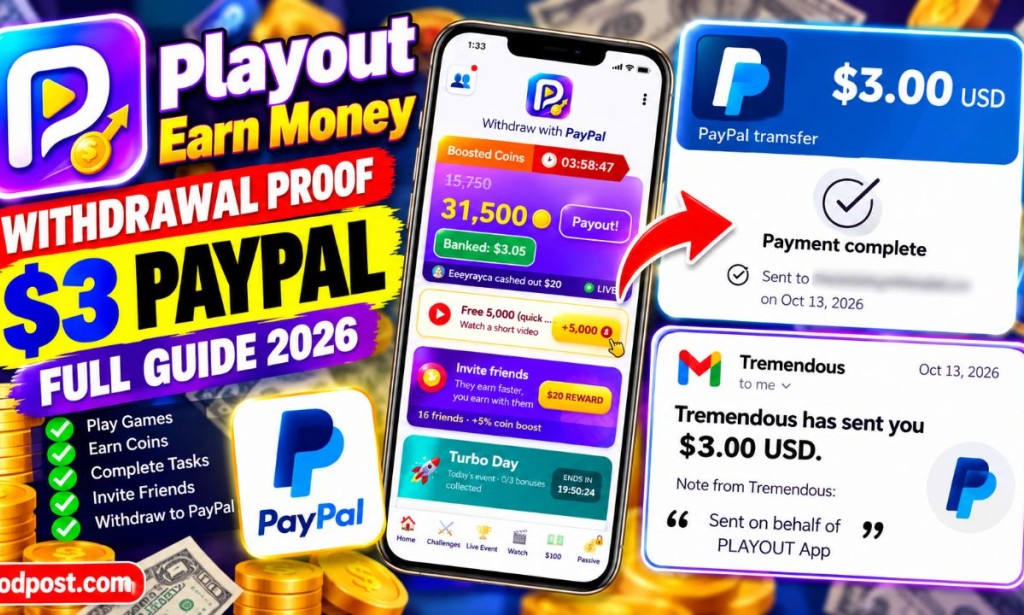
Playout is a popular rewards application that allows users to earn points and cash by playing games, completing challenges, and inviting friends. Once you've accumulated enough coins, the most important step is cashing out. This guide walks you through the entire withdrawal process, from hitting the minimum threshold to seeing the funds in your PayPal account.
Join me on Playout with my code AMIC-GHR and start with 2x coin bonus for 48 hours! 🥳Download playout here
Requirements for Withdrawal
- Minimum Balance: A minimum of 31,500 coins is required to initiate a withdrawal, which equates to a $3.00 USD payout.
- PayPal Account: A valid, active PayPal account linked to a confirmed email address.
- Mobile Device: The app requires access to your device's camera for a quick verification step.
The Withdrawal Process: Step-by-Step
Step 1: Initiating the Payout
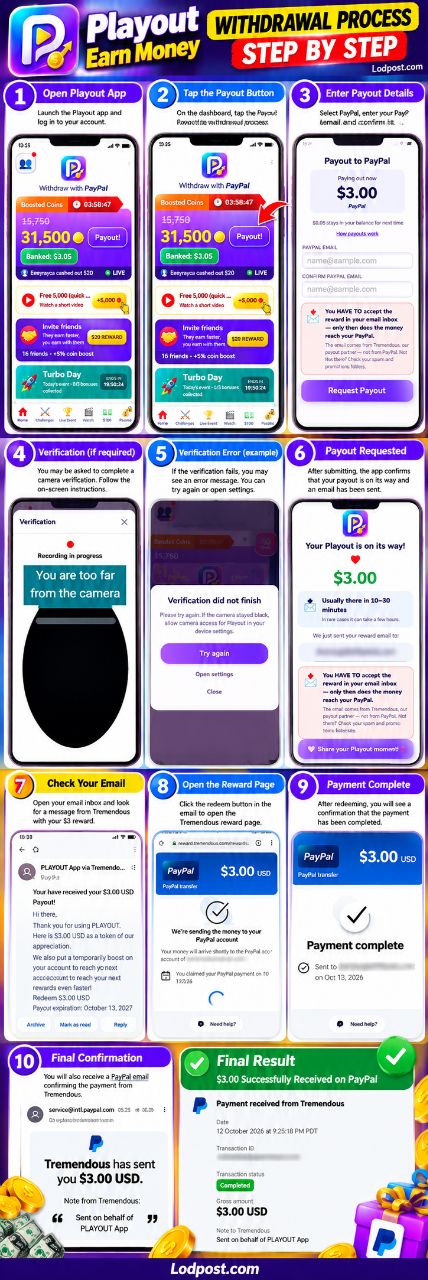
Once your balance hits the required threshold (31,500 coins), navigate to the main screen. Tap the "Payout!" button. A pop-up will confirm the payout amount and note that a small remainder (e.g., $0.05) will stay in your balance for next time. Enter your PayPal email address in the required fields and confirm it.
Step 2: Identity Verification
The app will prompt you to complete a quick liveness verification. This usually involves recording a short video of yourself. Ensure you are in a well-lit area and hold the phone steady. If the camera feed appears black or you receive an error such as "You are too far from the camera," simply tap "Try again." You may need to go into your device settings to ensure Playout has camera permissions enabled.
Step 3: Confirming the Reward Email
After submitting the payout request, the app will show a confirmation screen indicating the money is on its way. Crucial Step: You must check the email inbox associated with your account. Playout uses a payout partner called "Tremendous" to process the transfer. Look for an email from Tremendous or Playout. If you don't see it in your main inbox, be sure to check your spam or promotions folders.
Step 4: Redeeming the Payout
Open the reward email and click the "Redeem $3.00 USD" button. This will redirect you to the Tremendous rewards page. You will need to enter your PayPal email address one more time to link the payment. Once entered, click the "Transfer $3.00 USD" button.
Step 5: Final Confirmation and Receipt
After initiating the transfer on the Tremendous page, you will see a "Payment complete" screen. Shortly after, you will receive an official email from PayPal stating that "Tremendous has sent you $3.00 USD" on behalf of the Playout App. You can also log into your PayPal account to view the transaction in your Activity or History tab, where it will show as "Completed."
Tips for a Smooth Withdrawal
- Double-check your email: Typos in your PayPal email address will result in failed transfers.
- Patience is key: While the app states funds usually arrive in 10-30 minutes, it notes that in rare cases, it can take a few hours.
- Don't close the app: During the verification recording, keep the app in the foreground until the process is complete.
Following these steps ensures that your hard-earned rewards are successfully transferred from the Playout app directly into your PayPal balance without any hiccups.


You must be logged in to post a comment.