

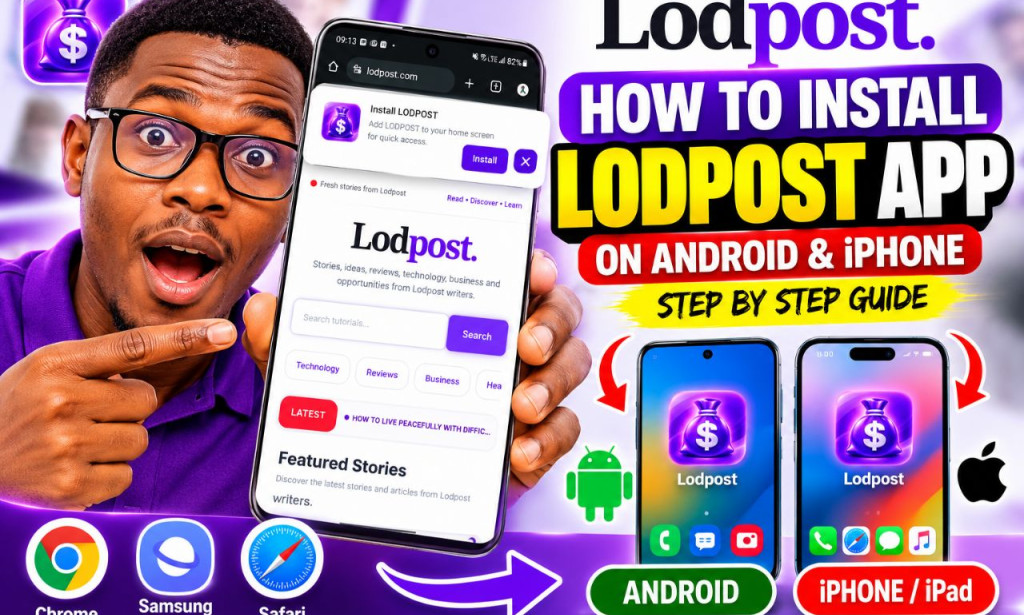
How to Download and Install the Lodpost App on Android and iOS Using PWA
Complete step-by-step guide to installing Lodpost on your Android phone or iPhone without downloading a traditional APK.
🧠 Introduction
If you use Lodpost regularly for reading articles, publishing content, discovering tutorials, checking reviews, or accessing your member account, opening the website through your browser every time can become inconvenient.
The good news is that Lodpost can be installed on your smartphone through a Progressive Web App, commonly called a PWA.
I decided to create this guide because many users see the "Install Lodpost" message when visiting the website but may not understand what the installation button actually does.
In the Android experience, the Lodpost website can display an installation banner with an Install button. After installation, Lodpost can be accessed from the phone like an app instead of requiring users to manually type the website address every time.
This guide explains the process for both Android phones and iPhones/iPads.
- An Android phone or iPhone/iPad
- An internet connection
- A supported web browser
- The Lodpost website address
- A few seconds to complete the installation
📑 Table of Contents
- What Is a PWA?
- What Is the Lodpost PWA?
- Requirements Before Installation
- How to Install Lodpost on Android
- Method 1: Using the Lodpost Install Button
- Method 2: Installing Through the Browser Menu
- What Happens After Android Installation?
- How to Install Lodpost on iPhone
- How to Install Lodpost on iPad
- How to Open and Log In to Lodpost
- Benefits of Installing Lodpost as a PWA
- PWA vs APK vs Normal Website
- Lodpost PWA Installation Problems
- How Lodpost PWA Updates Work
- Is Installing a PWA Safe?
- How to Remove Lodpost From Your Phone
- Frequently Asked Questions
- Final Thoughts
🌐 What Is a Progressive Web App (PWA)?
A Progressive Web App is a website designed to behave more like a mobile application.
Instead of downloading a large application package from the Google Play Store or installing an APK manually, a user can open a compatible website through a browser and add the web application to the phone.
Once installed, the PWA can have its own icon on the home screen or app launcher. Depending on the browser and operating system, it can also open in a more app-like interface without the normal browser address bar.
This makes PWAs particularly useful for websites that users visit frequently.
📲 What Is the Lodpost PWA?
The Lodpost PWA is the web-app version of Lodpost that allows users to access the platform from their phone using an installed shortcut/application experience.
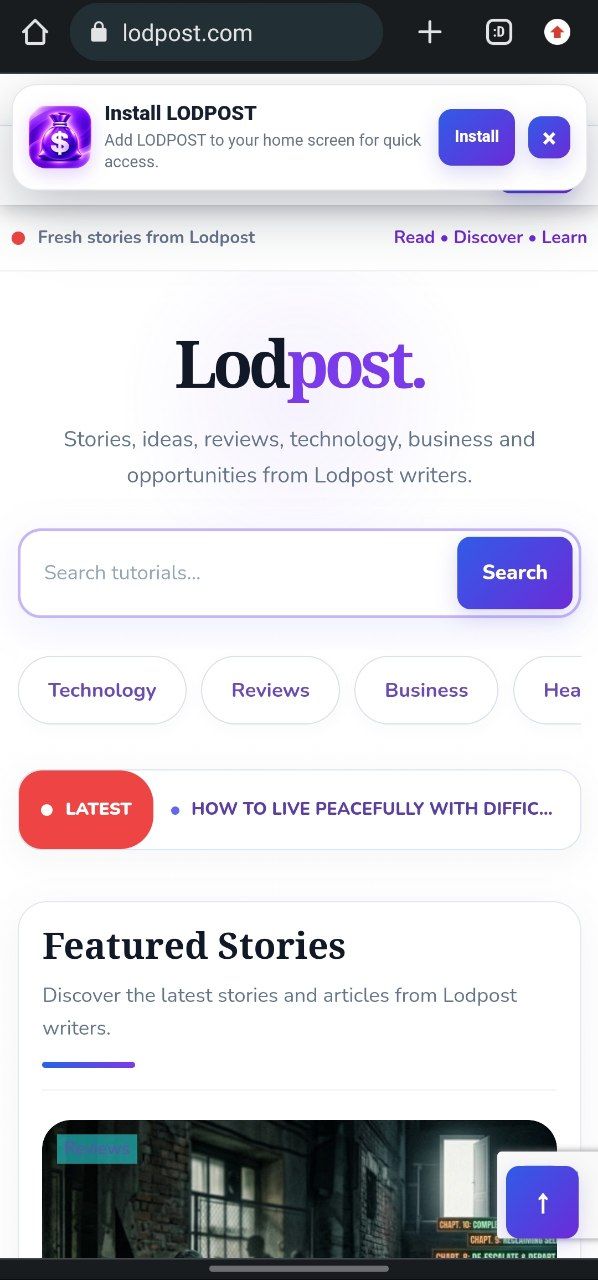
The screenshot accompanying this tutorial shows the Lodpost website displaying an installation banner at the top of the page.
Therefore, this tutorial is specifically about the PWA installation method, not about downloading an unofficial Lodpost APK from a third-party website.
📋 Requirements Before Installing Lodpost
| Requirement | Android | iPhone/iPad |
|---|---|---|
| Internet connection | ✔ Required | ✔ Required |
| Web browser | ✔ Required | ✔ Required |
| Google Play Store | Not required for PWA | Not applicable |
| APK file | Not required | Not applicable |
| Lodpost website | ✔ Required | ✔ Required |
| Home-screen installation | ✔ Supported where browser offers PWA installation | ✔ Supported |
🤖 How to Install Lodpost on Android
Android is usually the easiest platform for installing a PWA because compatible browsers can display an installation prompt directly.
If you visit Lodpost and see the "Install Lodpost" banner shown in the tutorial image, you can use that button to begin the installation.
📱 Method 1: Use the Lodpost Install Button
Open Lodpost
Open your Android browser and visit the official Lodpost website.
Make sure you are using the genuine Lodpost website and not a copied website pretending to be Lodpost.
Look for the Installation Banner
After the website loads, look near the top of the page for the "Install Lodpost" notification.
The banner shown in the example says:
"Add LODPOST to your home screen for quick access."
Tap Install
Tap the purple/blue Install button displayed inside the Lodpost installation banner.
Your browser may display an additional confirmation window.
Confirm the Installation
If Android displays a confirmation asking whether you want to install or add Lodpost, confirm the action.
The exact wording can differ depending on your phone manufacturer and browser.
Wait for Installation
Give the browser a few seconds to complete the process.
You normally do not need to download an APK file manually when using the PWA installation method.
Find the Lodpost Icon
After installation, look at your Android home screen or app drawer.
You should find a Lodpost icon that can be used to open the installed web application.
⚙️ Method 2: Install Lodpost Through the Android Browser Menu
If the automatic installation banner does not appear, you may still be able to install Lodpost from the browser menu.
Google Chrome on Android
- Open Google Chrome.
- Visit the official Lodpost website.
- Tap the three-dot menu in the upper-right corner.
- Look for an option such as Install app.
- If that option is not available, look for Add to Home screen.
- Tap the available option.
- Confirm the installation.
- Return to your Android home screen.
- Tap the Lodpost icon to open it.
The exact wording can change depending on your Android version and Chrome version.
Samsung Internet
Samsung users may also use Samsung Internet to access Lodpost.
- Open Samsung Internet.
- Visit Lodpost.
- Open the browser menu.
- Look for an option such as Add page to.
- Select Home screen when available.
- Confirm the shortcut.
- Open Lodpost from the new home-screen icon.
🚀 What Happens After Installing Lodpost on Android?
Once Lodpost has been installed as a PWA, you can launch it from the icon placed on your phone.
This saves time because you do not have to open the browser, type the website address, and search for Lodpost every time you want to use it.
Quick Access
Open Lodpost directly from your phone's home screen.
App-Like Experience
The installed web application can provide a more app-like experience than a normal browser tab.
No Traditional APK
The PWA installation method does not require you to search for an unofficial APK file.
🍎 How to Install Lodpost on iPhone
The process on iPhone is different from Android.
Instead of expecting an Android-style Install App prompt, iPhone users can add a supported web application to the home screen through the browser's sharing menu.
Step 1: Open Safari
Open the Safari browser on your iPhone.
Step 2: Visit Lodpost
Enter the official Lodpost website address in Safari and wait for the website to load completely.
Step 3: Tap the Share Button
Tap the Share button in Safari.
Depending on your iPhone model and iOS version, the position of the Share button can differ.
Step 4: Select Add to Home Screen
Scroll through the Share menu until you find:
➕ Add to Home Screen
Tap this option.
Step 5: Confirm Lodpost
Your iPhone should display a screen where you can confirm the name of the shortcut.
Keep the name as Lodpost if it is already correct.
Step 6: Tap Add
Tap Add.
The Lodpost icon should then appear on your iPhone's home screen.
Step 7: Open Lodpost
Go back to the home screen and locate the new Lodpost icon.
Tap the icon whenever you want to access Lodpost.
📱 How to Install Lodpost on iPad
The basic process is similar on an iPad.
- Open Safari.
- Visit the official Lodpost website.
- Tap the Share button.
- Find Add to Home Screen.
- Tap it.
- Confirm the Lodpost name.
- Tap Add.
- Find the Lodpost icon on your home screen.
- Tap it to open Lodpost.
🔑 How to Open and Log In to Lodpost
Installing the PWA does not mean that you need to create a second account.
The installed Lodpost application is simply another convenient way to access the Lodpost website.
If you already have a Lodpost account, follow these steps:
- Open the Lodpost icon from your home screen.
- Wait for the website to load.
- Tap Login.
- Enter your registered email address or username, depending on the login form displayed.
- Enter your password.
- Tap the login button.
- Wait for your member dashboard to load.
If you do not already have an account, use the official registration option displayed on the Lodpost website.
⭐ Benefits of Installing Lodpost as a PWA
| Feature | Benefit |
|---|---|
| Home-screen icon | Provides quick access to Lodpost. |
| No traditional APK | You do not need to search for a third-party APK file. |
| Easy access | Launch Lodpost directly from your phone. |
| App-like experience | Can provide a more focused interface than a normal browser tab. |
| Cross-platform | Can be used on supported Android and Apple devices. |
| Browser-based | The platform remains connected to the Lodpost web service. |
📊 PWA vs APK vs Normal Website
It is important to understand the difference between these three options.
| Feature | Lodpost PWA | Traditional APK | Normal Website |
|---|---|---|---|
| Requires APK download | No | Yes | No |
| Installed on home screen | Yes | Yes | Optional shortcut |
| Google Play Store required | No | No, if APK is manually installed | No |
| Runs through web technology | Yes | Usually not | Yes |
| App-style access | Yes | Yes | Usually browser-based |
| Good for quick access | Yes | Yes | Yes, but requires browser access |
🛠️ Lodpost PWA Installation Problems and Solutions
Problem 1: I cannot see the Install button
The installation prompt does not necessarily appear in every browser or under every condition.
Try opening Lodpost in another supported browser, especially Chrome on Android.
Problem 2: I clicked Install but nothing happened
Close the browser, reopen it, visit Lodpost again, and try the installation process once more.
Also check whether your browser or operating system has pending updates.
Problem 3: There is no "Add to Home Screen" option on iPhone
Open Lodpost directly in Safari rather than an in-app browser opened through another application.
Then open the Share menu and look for Add to Home Screen.
Problem 4: I opened Lodpost inside Facebook or Telegram
Sometimes links opened inside social-media applications use an embedded browser.
For the most reliable installation process, copy the Lodpost website address and open it directly in your normal browser.
Problem 5: The Lodpost icon is not on my home screen
Check your Android app drawer or search your iPhone home-screen pages.
On some devices, an installed web app may be placed somewhere other than the first home-screen page.
Problem 6: Lodpost is still opening in the browser
This can happen depending on the browser, device, or way the shortcut was created.
Try installing the PWA again using a browser that supports PWA installation.
🔄 How Lodpost PWA Updates Work
One advantage of a web-based application is that users normally access the current version of the website rather than having to manually search for a new APK every time the website changes.
However, the exact update behavior depends on how the Lodpost PWA has been configured and how the browser handles cached content.
🔐 Is Installing Lodpost as a PWA Safe?
The important point is to install Lodpost from the official Lodpost website.
A PWA installation is different from downloading an APK from an unknown website.
Modified applications can potentially contain unwanted software, malicious code, or fake login forms.
🗑️ How to Remove Lodpost From Your Phone
Android
If Lodpost was installed as an app, press and hold the Lodpost icon and look for an option such as:
Uninstall or App info → Uninstall.
The exact option depends on your Android phone manufacturer.
iPhone
Press and hold the Lodpost icon on your iPhone.
Select the option to remove or delete the web app from the home screen when available.
❓ Frequently Asked Questions
1. Is Lodpost available as an APK?
This tutorial is specifically for the Lodpost PWA installation method. You do not need an APK to use this installation method.
2. Do I need the Google Play Store to install Lodpost?
No. The PWA installation process works through the browser and does not require a traditional Play Store download.
3. Can I install Lodpost on iPhone?
Yes. On supported iPhones, you can add the Lodpost web app to your home screen using the browser's Add to Home Screen function.
4. Does installing Lodpost create a new account?
No. Installing the PWA is an access method. Your Lodpost account remains separate from the installation itself.
5. Do I need to download a large application?
No traditional APK download is required for the PWA installation method.
6. Can I uninstall Lodpost later?
Yes. You can remove the installed web app or home-screen shortcut using the normal removal options provided by your device.
7. Why should I install Lodpost instead of using Chrome?
The main advantage is convenience. Instead of opening your browser and searching for Lodpost every time, you can tap the Lodpost icon directly from your phone.
8. Can I use Lodpost without an internet connection?
Do not assume that every Lodpost feature will work offline. PWA technology can support offline functionality, but what actually works offline depends on how the Lodpost website has been configured.
⚡ Quick Installation Guide
| Device | Recommended Method | Basic Steps |
|---|---|---|
| Android | Chrome/PWA Install | Open Lodpost → Tap Install → Confirm → Open Lodpost icon |
| Samsung Android | Chrome or Samsung Internet | Open Lodpost → Install/Add to Home Screen → Confirm |
| iPhone | Safari | Open Lodpost → Share → Add to Home Screen → Add |
| iPad | Safari | Open Lodpost → Share → Add to Home Screen → Add |
⚠️ Important Things to Remember
- Do not download random Lodpost APK files from unknown websites.
- Use the official Lodpost website whenever possible.
- The PWA installation does not mean you are downloading a traditional Android APK.
- The installation process can look different depending on your phone, browser, and operating system version.
- On iPhone, the Share menu and Add to Home Screen option are important parts of the installation process.
- If the installation banner does not appear, try opening Lodpost directly in a supported browser.
- Keep your browser and phone operating system updated.
🏁 Final Thoughts
Installing Lodpost on your smartphone does not have to be complicated.
The method covered in this tutorial uses the Progressive Web App version of Lodpost. On Android, users may see the "Install Lodpost" banner directly on the website, as shown in the example above. Tapping the installation button allows Lodpost to be added for quick access.
On iPhone and iPad, the process is slightly different. Instead of looking for an APK or a traditional installation package, users can open Lodpost in Safari, tap the Share button, select Add to Home Screen, and confirm the installation.
The biggest advantage is convenience. Once Lodpost has been added to your device, you can simply tap its icon whenever you want to access the platform.
Android: Open Lodpost → Tap Install → Confirm → Open the Lodpost icon.
iPhone/iPad: Open Lodpost in Safari → Tap Share → Add to Home Screen → Add.


You must be logged in to post a comment.