

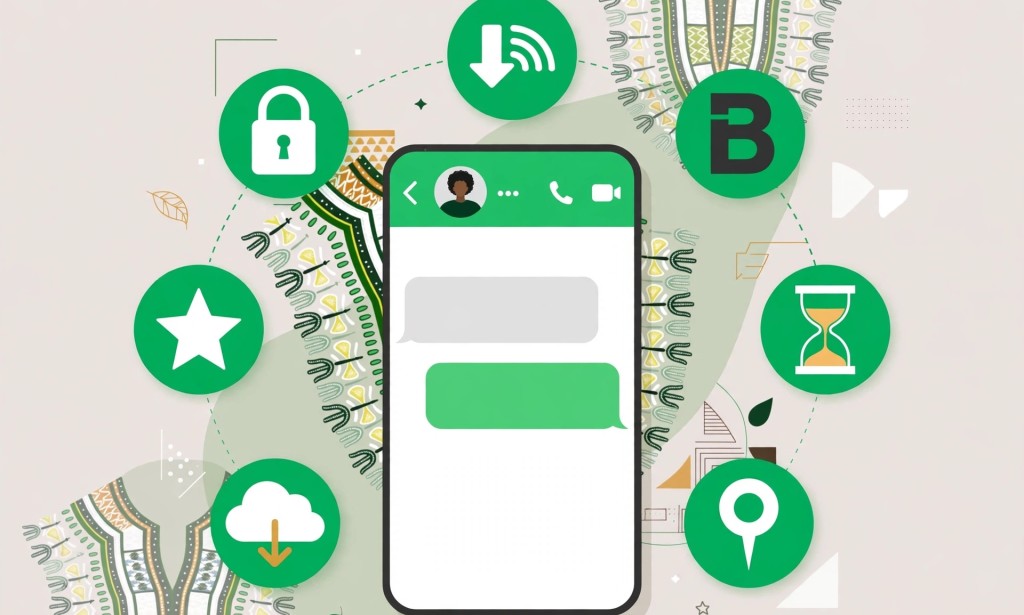
7 WhatsApp Tricks Many People Don't Know That Can Make Your Life Easier
Almost everyone uses WhatsApp every day to chat with friends, communicate with customers, share pictures and videos, and stay connected with family. But did you know that WhatsApp has several useful features that many people rarely use?
Some of these tricks can help you protect your privacy, save mobile data, organize important conversations and make your messages look more professional.
Here are seven useful WhatsApp tricks you should know in 2026.
1. Read Messages Without Showing Blue Ticks
Do you sometimes want to read a WhatsApp message without letting the sender know that you have opened it?
You can turn off read receipts by following these steps:
- Open WhatsApp.
- Go to Settings.
- Select Privacy.
- Find Read Receipts and turn it OFF.
Once disabled, people generally won't see blue ticks when you read their individual messages. However, you also won't be able to see read receipts from other people. This setting does not apply to group chats or play receipts for voice messages in the same way.
2. Stop WhatsApp From Consuming Your Mobile Data
If you use mobile data frequently, WhatsApp's automatic media downloads can consume a significant amount of your data, especially when people send videos and pictures in groups.
You can control what WhatsApp downloads automatically:
- Open WhatsApp Settings.
- Select Storage and Data.
- Find Media Auto-Download.
- Open each option under mobile data and untick unwanted media types.
- Save your changes if prompted.
You can also adjust the settings for Wi-Fi. This gives you more control over what gets downloaded to your phone and helps reduce unnecessary data usage.
3. Lock WhatsApp With Your Fingerprint
Do you share your phone with other people but want to keep your WhatsApp conversations private?
WhatsApp supports fingerprint or biometric app locking on compatible Android devices. Depending on your phone, you can activate it through these steps:
- Open WhatsApp.
- Go to Settings.
- Select Privacy.
- Look for App Lock or Fingerprint Lock.
- Enable the feature and follow the instructions.
On iPhones, the equivalent feature may be available through Screen Lock using Face ID or Touch ID.
This adds another layer of privacy, although you should still protect your phone with a strong screen lock.
4. Pin Your Important WhatsApp Chats
Imagine having an important customer, business partner or family member whose conversation you need to access regularly. Instead of scrolling through hundreds of messages, you can pin that chat.
To pin a conversation on Android:
- Open WhatsApp.
- Find the chat you want to pin.
- Press and hold the conversation.
- Tap the pin icon at the top.
The conversation will remain near the top of your chat list for easy access. WhatsApp generally allows you to pin up to three chats in the main chat list.
5. Find Out Which Chats Are Taking Up Your Phone Storage
Is your phone constantly telling you that storage space is running out? WhatsApp videos, pictures and documents could be part of the problem.
WhatsApp has a storage management feature that helps you identify large files and conversations taking up space.
- Open WhatsApp Settings.
- Select Storage and Data.
- Tap Manage Storage.
- Review large files and chats using significant storage.
- Delete unwanted videos, pictures and documents.
This feature does not necessarily rank the people you chat with most. Instead, it helps you identify where WhatsApp is using storage so you can free up space.
6. Make Your WhatsApp Messages Bold, Italic or Strikethrough
Did you know that you can format your WhatsApp messages without installing another application?
This is particularly useful for business owners, content creators and people who want to make important information stand out.
Here are the formatting shortcuts:
- Bold: Put an asterisk before and after your text. Example:
*Hello*becomes Hello. - Italic: Put an underscore before and after your text. Example:
_Hello_becomes Hello. - Strikethrough: Put a tilde before and after your text. Example:
~Hello~becomes Hello. - Monospace: Put three backticks before and after your text. Example:
```Hello```.
These formatting options can help you create clearer announcements, business messages and important reminders.
7. Star Important WhatsApp Messages
Have you ever received an important address, meeting location, payment instruction or business information that you needed to find again later?
Instead of scrolling through an entire conversation, you can star the message.
- Open the WhatsApp conversation.
- Press and hold the important message.
- Tap the star icon.
- To find it later, open the chat's information or menu and select Starred Messages.
You can also find your starred messages through WhatsApp's main menu, depending on your device and app version.
This is a simple way to keep important information organized without taking screenshots of everything.
Final Thoughts
WhatsApp is more than just an application for sending messages. It has several useful features that can help you manage your privacy, save mobile data, protect conversations and organize important information.
Whether you use WhatsApp for personal communication or business, learning these tricks can make your daily experience much easier.
Which of these seven WhatsApp tricks did you not know before? Let us know in the comments!
Note: WhatsApp menus and feature availability may differ depending on your phone, operating system and app version. Make sure you are using an updated version of WhatsApp.


You must be logged in to post a comment.