
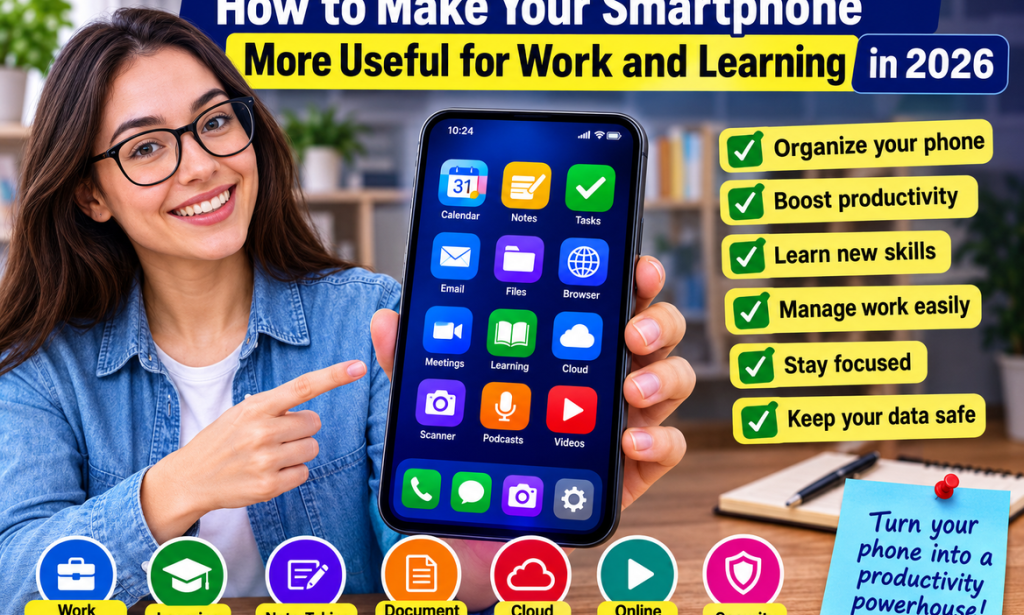
How to Make Your Smartphone More Useful for Work and Learning in 2026
A Complete Beginner's Guide
Your smartphone can be much more than a device for calls, social media, and entertainment.
With the right setup, it can become a pocket-sized workstation and learning tool.
You can use it to:
-
Read books and articles
-
Take notes
-
Attend online classes
-
Manage tasks
-
Scan documents
-
Edit files
-
Join meetings
-
Record ideas
-
Practice new skills
-
Communicate with clients
-
Track projects
-
Store important information
-
Learn from videos and podcasts
The good news is that you don't necessarily need an expensive new phone.
You can often get much more from the device you already own by organizing it properly and choosing tools that match your goals.
Here's how.
Step 1: Decide What You Want Your Phone to Help You Do
Before downloading dozens of apps, identify your main goals.
Your goals might include:
-
Studying
-
Freelancing
-
Running a small business
-
Writing
-
Managing projects
-
Learning a language
-
Reading
-
Creating content
-
Staying organized
Your phone should support your priorities.
Step 2: Clean Up Your Home Screen
Your home screen should make useful tools easy to reach.
Keep your most important apps visible.
For example:
-
Calendar
-
Notes
-
Tasks
-
Email
-
Files
-
Browser
-
Calculator
Move distracting apps into folders or another screen.
A cleaner home screen can make it easier to focus on what you actually need.
Step 3: Remove Apps You Don't Use
Unused apps take up storage and create clutter.
Review your installed apps.
Ask:
Do I actually use this?
If not, uninstall it when appropriate.
You can always reinstall an app later if you need it.
Step 4: Organize Apps Into Folders
Create simple folders such as:
Work
Email, documents, meetings, project tools
Learning
Books, courses, language apps, educational resources
Finance
Banking, budgeting, payments
Creativity
Photo, video, design, and writing tools
Travel
Maps, transport, bookings
Don't create dozens of folders.
Keep the system simple.
Step 5: Control Notifications
Notifications can interrupt your concentration.
Turn off unnecessary notifications.
Keep alerts for things that genuinely require your attention.
For example:
You may need notifications for:
-
Important messages
-
Calendar events
-
Work communication
-
Security alerts
You probably don't need constant alerts from every entertainment app.
Step 6: Use Focus or Do Not Disturb Modes
Most modern smartphones offer some form of focus or notification management.
Create modes for activities such as:
Work
Study
Sleep
Personal time
The goal is to reduce interruptions when you're doing something important.
Step 7: Create a Digital To-Do List
Your phone can replace a paper task list.
Use a task-management app or your built-in reminders.
Keep tasks specific.
Instead of:
Study
write:
Complete chapters 3 and 4 of the course.
Specific tasks are easier to act on.
Step 8: Use Your Calendar
Don't use your calendar only for appointments.
Schedule:
-
Study sessions
-
Meetings
-
Deadlines
-
Work blocks
-
Personal projects
-
Important reminders
A calendar helps turn intentions into scheduled actions.
Step 9: Use Your Notes App
Your phone is always nearby.
Use your notes app to capture:
-
Ideas
-
Questions
-
Research notes
-
Meeting notes
-
Content ideas
-
Shopping lists
-
Project plans
Don't rely on memory when your phone can capture the information immediately.
Step 10: Create a Quick Capture System
When an idea appears, capture it quickly.
For example:
Idea: Create a guide about online freelancing.
Write it down immediately.
Later, organize it.
The goal is to avoid losing useful ideas.
Step 11: Use Voice Notes
Typing isn't always convenient.
Use voice recording to capture:
-
Ideas
-
Reminders
-
Meeting notes
-
Thoughts
-
Drafts
-
Study summaries
You can later convert useful recordings into written notes.
Step 12: Scan Documents With Your Phone
Your smartphone camera can often be used to scan documents.
You can digitize:
-
Receipts
-
Forms
-
Notes
-
Contracts
-
Certificates
-
Handwritten pages
Save important documents in an organized location.
Step 13: Use Cloud Storage
Cloud storage can help you access files across devices.
You can store:
-
Documents
-
Photos
-
Presentations
-
Spreadsheets
-
PDFs
-
Project files
Choose a reputable service and understand its storage limits and privacy settings.
Step 14: Organize Your Files
Don't let your phone become a digital junk drawer.
Create folders such as:
Work
School
Personal
Projects
Documents
Use clear filenames.
Instead of:
document123.pdf
use something like:
Freelance_Proposal_August_2026.pdf
Step 15: Back Up Important Information
Your phone can be lost, damaged, or replaced.
Back up important:
-
Photos
-
Contacts
-
Documents
-
Notes
-
Other essential data
Check that your backup system actually works.
Don't assume that an app automatically backs up everything.
Step 16: Turn Your Phone Into a Reading Device
Your phone can provide access to:
-
Ebooks
-
Articles
-
Research papers
-
News
-
Online courses
-
Documentation
Keep useful reading material in one place.
Step 17: Use Audiobooks and Podcasts for Learning
You can learn while:
-
Walking
-
Commuting
-
Exercising
-
Doing household tasks
Choose educational content related to your goals.
Don't turn every spare moment into productivity, though.
Rest is useful too.
Step 18: Learn Through Video
Video can be useful for subjects that benefit from demonstrations.
Examples include:
-
Software tutorials
-
Programming
-
Design
-
Photography
-
Cooking
-
DIY skills
-
Language learning
Pause and practice rather than simply watching passively.
Step 19: Use Active Learning
Watching content isn't the same as learning.
After studying something, ask:
Can I explain this without looking at my notes?
Try:
-
Summarizing
-
Quizzing yourself
-
Solving problems
-
Teaching someone else
-
Creating examples
Active learning can make study time more useful.
Step 20: Use Your Phone as a Study Timer
Try structured sessions.
For example:
25 minutes study
5 minutes break
Or choose longer sessions if they work better for you.
The important thing is creating focused periods rather than constantly switching between apps.
Step 21: Keep Distractions Away During Study
Put distracting apps out of sight.
Use:
-
Focus mode
-
App limits
-
Do Not Disturb
-
Airplane mode when appropriate
Your phone should become part of the learning environment rather than the distraction.
Step 22: Use a Dictionary and Translation Tools
Your phone can quickly help you understand unfamiliar words.
This can be particularly useful when:
-
Reading difficult material
-
Learning languages
-
Writing
-
Researching
Don't just translate everything automatically.
Try to understand the meaning and context.
Step 23: Learn a New Language
A smartphone can support language learning through:
-
Vocabulary practice
-
Listening exercises
-
Flashcards
-
Reading
-
Speaking practice
-
Educational videos
Consistency matters more than trying to learn everything in one session.
Step 24: Use Flashcards
Flashcards can help with:
-
Vocabulary
-
Definitions
-
Formulas
-
Historical facts
-
Technical concepts
Review difficult cards more frequently.
Step 25: Record Yourself
If you're learning:
-
Public speaking
-
A language
-
Presentation skills
-
Music
-
Communication
record yourself.
Then listen or watch the recording.
You may notice things you wouldn't notice while practicing.
Step 26: Use Your Phone for Meetings
Your phone can be useful for:
-
Video meetings
-
Voice calls
-
Team communication
-
Client conversations
Use headphones or a microphone when appropriate.
Find a quiet environment for important meetings.
Step 27: Keep Your Calendar and Email Connected
When possible, connect your work schedule and communication tools.
This makes it easier to:
-
See upcoming meetings
-
Respond to important messages
-
Track deadlines
-
Avoid scheduling conflicts
Step 28: Use Digital Documents
Your phone can let you review and sometimes edit:
-
Documents
-
Spreadsheets
-
Presentations
-
PDFs
This is useful when you're away from your computer.
For complex work, a larger screen may still be more comfortable.
Step 29: Use Your Camera for Work
Your camera can be a surprisingly useful business tool.
Use it for:
-
Product photos
-
Receipts
-
Whiteboards
-
Documents
-
Short videos
-
Social-media content
-
Progress photos
A smartphone camera can be enough for many everyday tasks.
Step 30: Create Better Photos
You don't need professional equipment for every project.
Improve your phone photography by paying attention to:
-
Lighting
-
Composition
-
Background
-
Focus
-
Stability
Clean the camera lens before important shoots.
Step 31: Edit Photos on Your Phone
Basic editing can improve:
-
Brightness
-
Cropping
-
Exposure
-
Sharpness
-
Composition
Don't over-edit.
The goal is clarity.
Step 32: Create Short Videos
Your phone can become a portable content-creation tool.
You can create:
-
Tutorials
-
Product demonstrations
-
Educational clips
-
Business updates
-
Short-form videos
Plan your message before pressing record.
Step 33: Improve Your Audio
Good video with poor audio can be difficult to watch.
When recording:
-
Choose a quiet location
-
Reduce background noise
-
Speak clearly
-
Keep the microphone reasonably close
-
Check your recording
Clear audio matters.
Step 34: Use Your Phone as a Mobile Office
A simple mobile work setup could include:
-
Email
-
Calendar
-
Notes
-
Cloud storage
-
Document editor
-
Communication tools
-
Task manager
This can allow you to handle simple tasks from almost anywhere with an appropriate internet connection.
Step 35: Use a Bluetooth Keyboard When Needed
If you frequently write long messages or documents on your phone, a compatible external keyboard can make typing easier.
You don't need one for occasional notes.
It's most useful if mobile writing is part of your routine.
Step 36: Use a Stand
A simple phone stand can help with:
-
Video meetings
-
Reading
-
Cooking tutorials
-
Recording videos
-
Studying
It keeps your hands free.
Step 37: Keep Your Phone Charged
A productive phone isn't useful when the battery is dead.
Build simple charging habits.
Keep a charger or compatible power bank available when appropriate.
Avoid using damaged charging equipment.
Step 38: Protect Your Battery
Simple habits can help maintain your device.
Follow the manufacturer's charging recommendations.
Avoid excessive heat.
Keep your operating system and battery-related software settings updated.
Step 39: Keep Your Software Updated
Updates can include:
-
Security fixes
-
Bug fixes
-
New features
-
Compatibility improvements
Install updates from trusted sources.
Step 40: Protect Your Accounts
Your phone may provide access to:
-
Email
-
Banking
-
Work accounts
-
Cloud storage
-
Social media
-
Personal information
Use strong, unique passwords and multi-factor authentication where available.
Step 41: Use a Screen Lock
Use an appropriate:
-
PIN
-
Password
-
Fingerprint
-
Face authentication
This provides an important layer of protection if your phone is lost or stolen.
Step 42: Be Careful With Public Wi-Fi
Public networks can create security risks.
Avoid entering sensitive information on untrusted networks when possible.
Keep your phone and apps updated.
Use trusted connections for important financial or business activity.
Step 43: Review App Permissions
Apps may request access to:
-
Camera
-
Microphone
-
Location
-
Contacts
-
Photos
-
Files
Review permissions.
Ask:
Does this app really need this access?
Remove permissions that aren't necessary when your device allows it.
Step 44: Be Careful With Downloads
Download apps from trusted sources.
Avoid suspicious links and unofficial app packages.
A productivity tool isn't useful if it compromises your security.
Step 45: Use Password Management
A reputable password manager can help you create and store unique passwords.
This can reduce the temptation to reuse the same password everywhere.
Protect the password manager itself with strong security.
Step 46: Use Your Phone for Networking
Keep useful professional contacts organized.
Your phone can help you:
-
Follow up with clients
-
Schedule meetings
-
Communicate with colleagues
-
Join professional communities
-
Save contact information
Relationships can become valuable professional opportunities.
Step 47: Use Your Phone to Manage a Small Business
You can handle many basic business tasks from a smartphone:
-
Respond to customers
-
Check orders
-
Create posts
-
Track expenses
-
Send invoices
-
Manage appointments
-
Review analytics
A computer may still be better for complex tasks, but your phone can keep the business moving.
Step 48: Automate Repetitive Tasks
Look for tasks you repeat regularly.
Examples:
-
Calendar reminders
-
Recurring tasks
-
Scheduled posts
-
Email templates
-
File organization
-
Routine notifications
Automation can reduce unnecessary work.
Use automation tools carefully and review what they are doing.
Step 49: Review Your Phone Every Month
Once a month, spend a few minutes checking:
-
Apps
-
Notifications
-
Files
-
Photos
-
Storage
-
Permissions
-
Security settings
-
Unused subscriptions
A little maintenance prevents clutter.
Step 50: Create a Simple Smartphone Productivity System
You can build a simple system like this:
Capture
Use notes or voice recording for new ideas.
Organize
Move information into appropriate folders or apps.
Schedule
Put important tasks and deadlines into your calendar.
Focus
Use focus modes when working or studying.
Review
Check your tasks and notes regularly.
Back Up
Protect important information.
This turns your phone from a source of distractions into a practical tool.
Example: Using Your Smartphone for One Day of Learning
Imagine you're taking an online course.
Morning
Check your calendar and review your study plan.
During the Day
Listen to an educational podcast.
Afternoon
Watch a course lesson.
Study Session
Put your phone into focus mode and take notes.
After the Lesson
Create flashcards and test yourself.
Evening
Review what you learned.
The phone becomes part of a complete learning system.
Example: Using Your Smartphone for Freelancing
A freelancer could use a smartphone to:
-
Respond to client messages
-
Review project files
-
Join meetings
-
Track tasks
-
Capture ideas
-
Take product photos
-
Post content
-
Send invoices
-
Schedule appointments
This doesn't mean every task should be done on a phone.
It means the phone can help you stay productive when your computer isn't available.
Common Mistakes to Avoid
Downloading Too Many Apps
More apps don't automatically mean more productivity.
Keeping Every Notification On
Constant interruptions reduce focus.
Using Your Phone Only for Entertainment
There are many useful things it can do.
Trying to Do Complex Work on a Tiny Screen
Use a computer when the task requires it.
Ignoring Security
Your phone may contain sensitive information.
Never Backing Up Your Data
A lost device shouldn't mean losing everything.
Multitasking Constantly
Switching between apps can make focused work harder.
Using Productivity Apps Instead of Actually Working
The goal is progress, not endlessly organizing your apps.
Ignoring Screen Time
Technology should support your life, not consume all of it.
Final Thoughts
Your smartphone doesn't have to be an expensive distraction.
With a little organization, it can become a powerful tool for work, learning, communication, creativity, and personal organization.
You can use it to capture ideas, manage your schedule, study, read, communicate with clients, create content, scan documents, manage files, and protect important information.
You don't need to download every productivity app available.
Start with the tools you already have.
Clean up your home screen.
Turn off unnecessary notifications.
Create a simple task and note system.
Use your camera, calendar, cloud storage, and learning tools intentionally.
Protect your accounts and data.
Most importantly, decide what you want your smartphone to help you accomplish.
The best smartphone setup isn't the one with the most apps.
It's the one that helps you do more of what matters while creating fewer distractions.

You must be logged in to post a comment.