
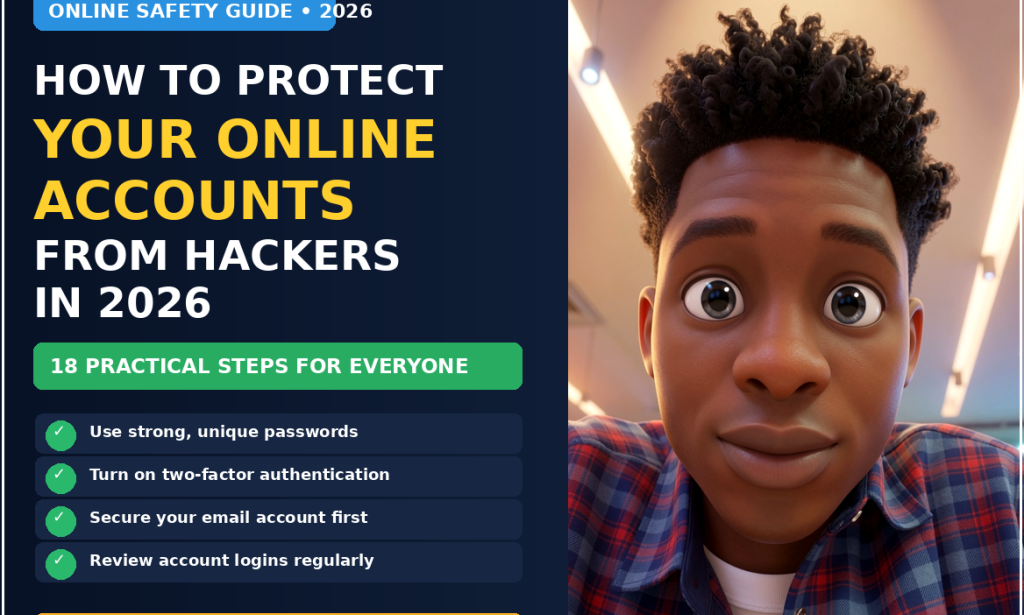
How to Protect Your Online Accounts in 2026: 18 Simple Security Steps Everyone Should Follow
Almost everyone has more online accounts than they realize.
You may have accounts for:
-
Email
-
Social media
-
Online shopping
-
Banking
-
Streaming
-
Work
-
School
-
Cloud storage
-
Travel
-
Gaming
-
News websites
-
Forums
-
Messaging services
-
Government services
-
Professional platforms
Each account may contain information that you would not want a stranger to access.
Your email may contain private conversations.
Your shopping account may contain your address and order history.
Your cloud storage may contain personal photographs and documents.
Your social media accounts may contain years of memories and conversations.
Your work accounts could provide access to important company information.
That is why protecting your online accounts should be part of your normal digital routine.
The good news is that you don't need to be a cybersecurity expert.
A few basic habits can significantly improve your security.
This guide explains practical steps that ordinary internet users around the world can follow in 2026.
Why Online Account Security Matters
When someone gains access to an online account, the problem isn't always limited to that single account.
One compromised account can sometimes lead to another.
For example, your email account may be used to reset passwords for other services.
This makes your main email address one of the most important accounts to protect.
A compromised social media account can also be used to send scam messages to friends.
A compromised shopping account could expose personal information.
A compromised work account could create much more serious consequences.
The goal isn't to live in fear of every message you receive.
The goal is to build good security habits so that common attacks become much harder to succeed.
Step 1: Use a Different Password for Every Important Account
One of the most important security rules is simple:
Don't reuse the same password everywhere.
Imagine you use the same password for:
-
Email
-
Shopping
-
Social media
-
A forum
-
A gaming account
If one website suffers a security incident and your password becomes known to attackers, they may try the same password on your other accounts.
This is why unique passwords matter.
If one account is compromised, your other accounts aren't automatically exposed by the same password.
Step 2: Make Your Passwords Long and Difficult to Guess
A good password should not be based on obvious personal information.
Avoid using things such as:
-
Your name
-
Birthday
-
Phone number
-
Favorite sports team
-
Family member's name
-
Simple number sequences
-
Common words
Longer passwords or passphrases can be much more difficult to guess.
For important accounts, use passwords that are unique and difficult for someone else to predict.
Step 3: Consider Using a Password Manager
Remembering dozens of unique passwords can be difficult.
A reputable password manager can help you generate and store strong passwords.
Instead of memorizing every password, you generally protect the password manager itself with strong security.
When choosing one, research the service carefully and understand how it protects your stored information.
You don't need to write every password in a notebook or use the same password everywhere simply because remembering many passwords is inconvenient.
Step 4: Protect Your Main Email Account First
Your primary email account deserves special attention.
Why?
Because email is often connected to your other accounts.
If someone gains access to your email, they may be able to request password resets for other services.
Your email account may also contain:
-
Password reset messages
-
Personal conversations
-
Receipts
-
Documents
-
Account notifications
-
Travel information
-
Work communication
Protect it with a unique strong password and additional security features whenever available.
Step 5: Turn On Two-Factor Authentication
Two-factor authentication, often called 2FA, adds another security layer.
Instead of relying only on a password, you may be required to provide another form of verification.
Depending on the service, this could involve:
-
An authentication app
-
A security key
-
A code
-
A device confirmation
-
Another supported verification method
If someone obtains your password, the additional factor can make account access more difficult.
Enable it on important accounts whenever the service offers a suitable option.
Step 6: Prioritize 2FA on Important Accounts
If you don't want to enable additional security on every account immediately, start with your most important ones.
Prioritize:
-
Main email
-
Financial accounts
-
Cloud storage
-
Work accounts
-
Social media
-
Shopping accounts
-
Other accounts containing sensitive information
Then gradually improve security across the rest.
Step 7: Save Your Recovery Information Securely
Account recovery can become a problem if you lose access to your phone or forget your password.
When setting up an account, pay attention to recovery options.
Depending on the service, these may include:
-
Recovery email
-
Backup codes
-
Trusted devices
-
Authentication methods
-
Recovery phone number
Store backup information somewhere secure.
Don't leave sensitive recovery codes in a public or easily accessible location.
Step 8: Don't Share Your Password
Never casually give your password to another person.
Legitimate companies generally should not need you to tell them your account password through an unexpected email, message or phone call.
Be especially cautious if someone claims:
"Give me your password so I can fix your account."
That is a major warning sign.
Step 9: Be Careful With Unexpected Links
A message may look convincing and still be fraudulent.
You might receive a message claiming:
-
Your account has been locked.
-
Your payment failed.
-
Your package cannot be delivered.
-
Your password is expiring.
-
You won a prize.
-
Your subscription is being canceled.
-
You need to verify your identity.
Don't automatically click the link.
Instead, open the official website or application yourself and check your account there.
Step 10: Don't Trust a Message Just Because It Looks Professional
Scammers can create messages that look surprisingly convincing.
They may use:
-
Logos
-
Professional formatting
-
Urgent language
-
Official-looking colors
-
Familiar company names
Visual appearance isn't proof that a message is legitimate.
Check the actual sender information and verify the request independently.
Step 11: Avoid Urgent Account Decisions
Scammers often create urgency.
They want you to act before thinking.
A message might say:
"Your account will be deleted today."
Or:
"You have 10 minutes to confirm your payment."
Don't allow urgency to replace verification.
Pause.
Check the account through the official application or website.
Step 12: Review Recent Account Activity
Many online services provide security dashboards showing recent activity.
Look for:
-
Recent logins
-
New devices
-
Unusual locations
-
Password changes
-
New recovery information
-
Connected applications
Review this information periodically.
If you see something you genuinely don't recognize, investigate it.
Step 13: Remove Old Devices You No Longer Use
Over the years, you may connect many devices to your accounts.
Old phones.
Old laptops.
Old tablets.
Shared computers.
If you no longer use a device, consider removing its account access when the service provides that option.
This reduces the number of devices that remain authorized.
Step 14: Review Third-Party Applications
Some services allow other applications to connect to your account.
For example, you might have authorized an application years ago and forgotten about it.
Review your account's connected applications periodically.
If you no longer use a service, revoke its access where appropriate.
Only authorize applications you trust.
Step 15: Be Careful on Shared Computers
Public or shared computers require extra caution.
Avoid entering sensitive account information on computers you don't control when possible.
If you must use one, take precautions such as:
-
Don't save passwords.
-
Don't allow the browser to remember your login.
-
Sign out completely.
-
Avoid accessing highly sensitive accounts when possible.
-
Don't leave personal files behind.
Step 16: Keep Your Devices Updated
Account security doesn't depend only on passwords.
Your phone and computer also need protection.
Install reputable operating-system and application updates.
Updates can include security fixes and improvements.
Don't ignore important security updates for months simply because the device appears to be working normally.
Step 17: Use a Screen Lock
Your device itself contains access to many accounts.
Use an appropriate screen lock such as:
-
PIN
-
Password
-
Fingerprint
-
Face authentication
-
Another supported security method
A screen lock creates an important barrier if your phone or computer is lost.
Step 18: Have a Plan for a Compromised Account
Don't wait until something goes wrong before thinking about what you'll do.
If you suspect an account has been compromised:
-
Change the password.
-
Use a new password that isn't used anywhere else.
-
Sign out of unfamiliar sessions if the service provides that option.
-
Enable or strengthen two-factor authentication.
-
Review recovery information.
-
Check connected applications.
-
Review recent account activity.
-
Contact the service through its official support channels if necessary.
If the compromised account is your main email account, prioritize it because other accounts may depend on it for recovery.
What to Do If You Receive a Suspicious Login Alert
Don't panic.
First determine whether you recognize the activity.
Think about:
-
Did you recently log in?
-
Did you use a new device?
-
Were you traveling?
-
Did you change networks?
-
Did you recently change your password?
If you don't recognize the activity, open the official application or website directly.
Don't necessarily use the link inside the alert.
Then review your security settings.
What If You Clicked a Suspicious Link?
Don't panic.
The appropriate response depends on what happened after clicking.
If you only opened a page and did not enter information, close it and review the situation.
If you entered your password, change that password immediately from the legitimate website or application.
If the password was reused elsewhere, change it on those other services too.
If you entered financial information, contact the relevant financial institution through an official channel.
The key is to act quickly rather than ignore the incident.
Don't Reuse Passwords After a Security Incident
Suppose you discover that one account has been compromised.
Don't simply change the password to another password you already use somewhere else.
Create a genuinely unique password.
Then check whether the old password was used on other accounts.
If it was, change those accounts too.
Be Careful With Password Reset Messages
Password reset messages deserve attention.
If you receive a password reset email that you didn't request, don't automatically click the link.
Someone may have entered your email address into a password-reset form.
Instead, access the service directly and check your account.
If necessary, change your password and review account activity.
Don't Store Passwords in Plain Sight
Writing passwords on a sticky note attached to your monitor isn't a good security practice.
Likewise, avoid keeping a simple unprotected text document containing all your passwords.
If you need help managing many passwords, consider using a reputable password-management solution.
Protect Your Recovery Email
Your recovery email can be just as important as your main account.
If someone gains access to it, they may be able to reset other accounts.
Protect your recovery email with:
-
A strong unique password
-
Two-factor authentication
-
Updated recovery information
-
Regular security reviews
Don't forget about it simply because you rarely use it.
Be Careful With Personal Information
Avoid sharing unnecessary personal information publicly.
Information such as:
-
Full birth date
-
Home address
-
Phone number
-
Personal email
-
Family details
-
Travel plans
can sometimes be useful to people attempting social engineering.
You don't have to disappear from the internet.
Just think carefully about what information you make publicly available.
Review Your Social Media Privacy Settings
Social platforms may allow you to control who can see your information.
Review settings related to:
-
Profile visibility
-
Contact information
-
Location sharing
-
Tagged posts
-
Friend or follower requests
-
Messages
-
Search visibility
The exact options vary by platform.
Use the most appropriate privacy settings for your situation.
Be Careful With Public Wi-Fi
Public Wi-Fi can be convenient in:
-
Hotels
-
Airports
-
Cafes
-
Libraries
-
Restaurants
-
Shopping centers
But you should still be cautious.
Avoid entering extremely sensitive information on an unfamiliar network when you can use a trusted connection instead.
Make sure your device's security settings are configured appropriately.
Don't Automatically Trust the Wi-Fi Name
Someone can create a network name that looks similar to a legitimate public network.
For example, you may see several networks with similar names.
When using public Wi-Fi, verify the correct network with the establishment when possible.
Be Careful With Account Verification Calls
Scammers may call pretending to be:
-
Bank employees
-
Technical support
-
Delivery companies
-
Government representatives
-
Account security departments
They may claim there is an urgent problem.
Never provide passwords or sensitive verification information simply because someone called you.
If you're uncertain, end the call and contact the organization using a trusted official number or website.
Don't Let Fear Make You Act Too Quickly
A common social-engineering tactic is creating fear.
The message might claim:
"Someone is trying to steal your account."
Ironically, the person sending the warning may be the one trying to steal it.
Whenever you receive an urgent security message, verify it independently.
Keep Your Contact Information Updated
Make sure important accounts have accurate recovery information.
If your phone number or recovery email changes, update your accounts.
Old recovery information can create problems later.
Check Your Accounts After Losing a Device
If your phone or laptop is lost or stolen, don't wait.
Use another trusted device to review your important accounts.
Depending on the service, you may be able to:
-
Sign out the lost device
-
Remove it from trusted devices
-
Change your password
-
Disable sessions
-
Use device-location or remote-lock features
Prioritize accounts containing sensitive information.
Protect Financial Accounts Extra Carefully
Financial accounts deserve additional attention.
Use strong unique passwords and additional authentication features where available.
Monitor account activity.
If you see a transaction you don't recognize, contact your financial institution through an official channel immediately.
Never rely on a phone number or link supplied by a suspicious message.
Keep Important Security Notifications
Don't disable every security notification simply because you receive too many emails.
Some notifications can alert you to:
-
New logins
-
Password changes
-
Recovery changes
-
New devices
-
Suspicious activity
Instead of disabling everything, adjust notification settings so you receive useful alerts without unnecessary clutter.
Don't Ignore Small Security Warnings
A single unfamiliar login may be harmless.
But repeated unfamiliar activity deserves attention.
Don't train yourself to ignore every security notification.
Review unusual activity and determine whether it was actually you.
Use Separate Accounts Where Appropriate
Depending on your needs, separating certain activities can make account management easier.
For example, some people maintain different email addresses for:
-
Important personal accounts
-
Shopping
-
Newsletters
-
Professional communication
This can reduce exposure and make inbox management easier.
However, the most important thing is knowing which account is connected to which service.
Keep a Personal Security Checklist
You don't have to remember everything.
Create a simple checklist:
-
Main email protected
-
Unique passwords
-
Two-factor authentication enabled
-
Recovery information updated
-
Old devices removed
-
Connected applications reviewed
-
Security alerts checked
-
Important devices updated
Review it every few months.
A 15-Minute Account Security Checkup
If you haven't reviewed your security recently, start here.
Minutes 1–3
Check your main email security settings.
Minutes 4–6
Review recent account activity.
Minutes 7–9
Check two-factor authentication.
Minutes 10–12
Review connected devices.
Minutes 13–15
Remove old access and update anything outdated.
You don't need to fix everything in one session.
The important thing is to start.
A Complete Online Account Security Checklist
-
Use unique passwords
-
Use long passwords or passphrases
-
Consider a reputable password manager
-
Protect your main email account
-
Enable two-factor authentication
-
Save recovery codes securely
-
Review recent account activity
-
Remove old devices
-
Review connected applications
-
Keep devices updated
-
Use a secure screen lock
-
Avoid suspicious links
-
Verify unexpected account alerts
-
Be careful with public Wi-Fi
-
Protect recovery information
-
Review social-media privacy
-
Have a plan for compromised accounts
-
Monitor important financial activity
Common Account Security Mistakes
Using One Password Everywhere
This creates unnecessary risk.
Ignoring Two-Factor Authentication
An additional security layer can provide valuable protection.
Clicking Urgent Links Immediately
Urgency is often used to pressure people into making mistakes.
Forgetting Old Devices
Old devices may remain connected to accounts.
Ignoring Security Notifications
Important warnings can get lost if you never review them.
Sharing Passwords
Passwords should remain private.
Using Obvious Personal Information
Names and birthdays can be easier to guess than strong alternatives.
Never Updating Recovery Information
Old phone numbers and email addresses can make account recovery difficult.
Final Thoughts
Online account security doesn't need to be complicated.
You don't need to become a cybersecurity professional to significantly improve your digital safety.
Start with the basics.
Use unique passwords.
Make them strong.
Protect your main email account.
Turn on two-factor authentication.
Keep recovery information updated.
Review connected devices.
Pay attention to unusual login alerts.
Be skeptical of unexpected links and urgent requests.
Keep your phone and computer updated.
And have a plan for what you'll do if an account is compromised.
One of the most important lessons is that security is not a one-time activity.
Your online accounts change.
You buy new devices.
You stop using old services.
You create new accounts.
You change phone numbers.
You install new applications.
That means your security settings should occasionally be reviewed too.
Spend a few minutes every few months checking your most important accounts.
A small amount of attention can prevent a much bigger problem later.
In 2026, protecting your online accounts is no longer something that only technology experts need to think about.
Email, shopping, work, banking, entertainment and communication are all part of everyday digital life.
The stronger your basic security habits are, the harder it becomes for someone else to take control of the accounts that matter most to you.

You must be logged in to post a comment.